How to Remove Instagram AI Info Label from Reels and Videos
You uploaded an AI-generated video to Instagram and a small AI info tag appeared under your username. You are not alone. Many creators who make Reels with Google Gemini, Veo and other AI video tools see it. This guide explains why Instagram shows the label, what you can clean from the video file before you upload, and what no tool can change, so you do not waste time on promises that do not hold.
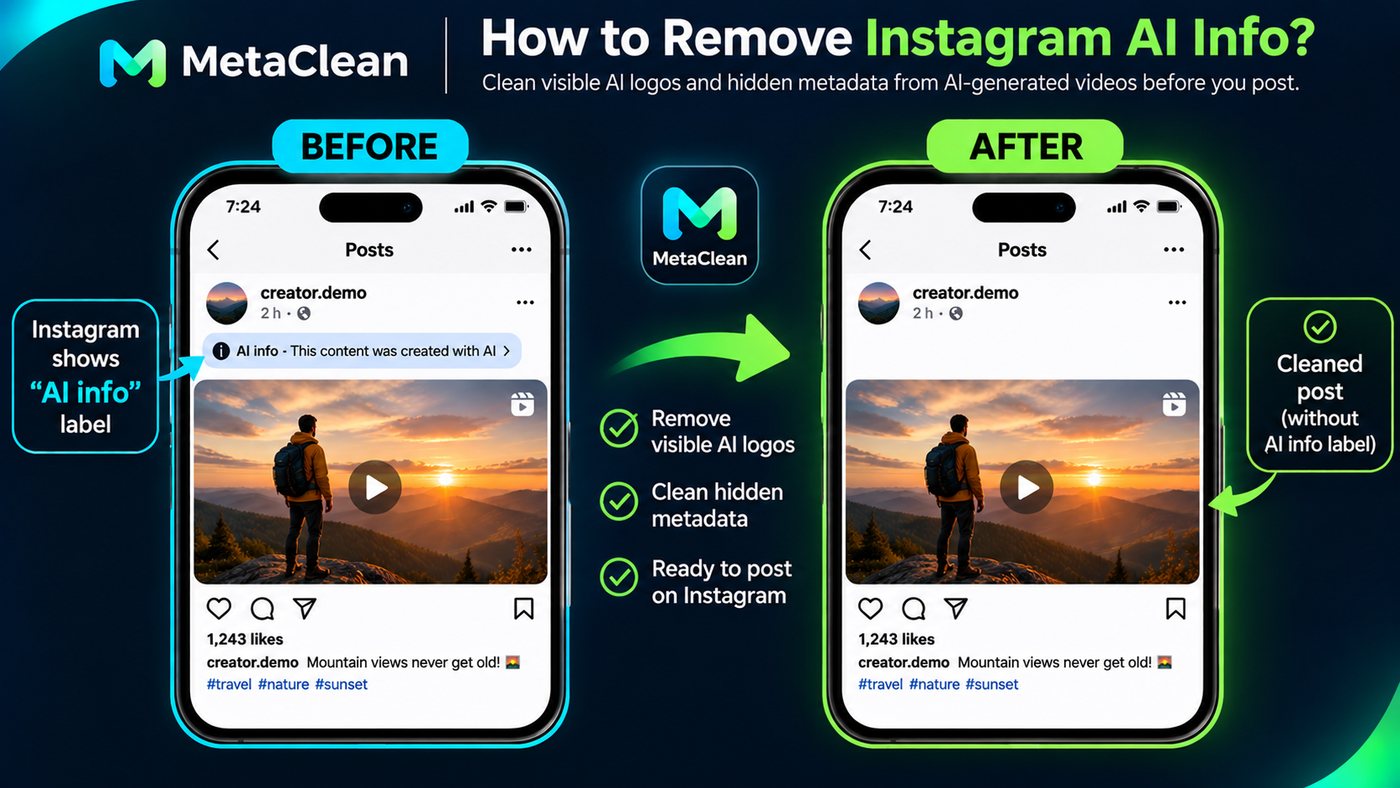
What is the Instagram AI info label?
AI info is Instagram’s transparency label. It helps viewers see that a post was made or changed with AI. On a Reel or a post it appears under the username and, when tapped, shows a short explanation such as “This content was created with AI”. Meta describes it as a transparency feature, not a penalty, and many AI creators use it openly and keep their audience.
Why does Instagram show the AI info label on your Reel?
Meta says it uses industry-standard AI indicators and what creators tell it. In practice, a Reel can get the label for one or more of these reasons:
- Signals inside the video file. Some AI tools write information into the file that says the video was made by AI, for example a title or comment tag, the name of the tool, or a creation record.
- Content Credentials (C2PA). A signed record, stored in the file, that describes how the content was made or edited. Read what is hidden in an AI video file.
- Your own disclosure. When you upload, you can mark the post as AI-generated. Meta asks people to do this for realistic AI content.
- Other signals. Instagram does not publish all of them. They can include invisible watermarks inside the pictures.
What cleaning your video can and cannot change
| Part of your video | MetaClean | Why it matters |
|---|---|---|
| Visible Gemini / Veo sparkle in the corner | Removed from every frame | A tidy picture, nothing covers the corner |
| File tags (title, comment, creation time, encoder) | Removed | Privacy, and one kind of AI signal less in the file |
| Chapters and extra data in the container | Removed | Privacy |
| Content credentials (C2PA) | Not carried over into the cleaned video | A record of how the file was made is not in the new file |
| Sound | Kept as it is | No quality loss in the audio |
| Invisible watermark inside the pictures (SynthID) | Not touched | It can still tell a detector the video is AI-made |
| What you tell Instagram | Not in our control | If you mark the post as AI, the label appears |
So cleaning removes some of the signals that sit in the file. It does not decide what Instagram shows. The label may still appear, and we do not offer, and will not build, a way to hide that a video is AI-generated.
Before and after: the video file
This is the visible part. The sample is a real Google Veo video that we cleaned with MetaClean (small and low frame rate so it loads fast). The ring shows where the sparkle is.
The sample videos and the zoomed pictures in this guide come from real Google Veo videos that we generated for testing. The “After” was made with the real Image Cleaner. They are small and low frame rate on purpose, so they load fast. Real videos differ, so always play the result before you deliver it.
Before cleaning, the file can also carry tags and other hidden data. After cleaning, the video plays the same, with the sound unchanged, and the hidden file data is gone. See how the sparkle is removed from every frame and the measured results.
How to clean your AI video before you upload it to Instagram
Step 1: Make your video and download the original
Create the video in Google Gemini, Veo or another AI tool. Download the original file. Do not use a screen recording, because it adds its own quality loss and cuts the corner.
Step 2: Open MetaClean and sign in
Go to app.metaclean.in and sign in with Google. There is no separate video page: images and videos use the same box.
Step 3: Add your video
Drop your video in the box (MP4, MOV or WebM, up to 60 seconds, 1080p and 150 MB). It waits in the list as “Not started” until you press Clean.
Step 4: Press Clean
MetaClean finds the sparkle, calculates the picture back in every frame, keeps the sound and drops the hidden file data. A 10 second video takes about half a minute.
Step 5: Download and check the result
Play the cleaned video at full size. Look at the bottom-right corner and listen to the sound. If no sparkle was found in your video, only the hidden data is removed and the video is not counted.
Free to try: a free account can clean 3 videos a month, and one of them can be 1080p. Paid plans clean all their videos up to 1080p.
What if a real video of yours gets the label?
Some editing tools use AI for small steps (for example generative fill or AI object removal) and note it in the file, so a mostly real video can be labelled. If that happens: find which step added the note, keep your original and raw files as proof of how the video was made, and ask Instagram for a review through its help options. Be accurate about what you used.
Why creators clean their AI videos
- A tidy file: no corner sparkle covering your picture.
- Privacy: tags, dates, tool names and other file information are not shared by accident.
- Client work: a clean file to deliver, together with an honest note that the video is AI-generated. See the disclosure checklist.
- Review before posting: you can play the cleaned video and compare it with the original before it goes online.
Final thoughts
Instagram’s AI info label is there to give viewers transparency, and it is decided by Instagram, not by your file alone. If you make AI videos with Gemini or Veo, MetaClean helps you clean the visible sparkle and the hidden file data before you publish. Use the AI label, say it in the caption, and keep your audience’s trust. For the background, read Instagram’s AI info label explained.
More guides
- How to remove the Gemini sparkle logo from an AI image, and what to expect
- How to remove the Veo / Gemini sparkle from an AI video, and what to expect
- What is image metadata? How to see it and remove it (EXIF, GPS, XMP, IPTC)
- What is hidden in an AI video file? Tags, credentials and SynthID explained
- What is SynthID? An honest explanation of Google's invisible AI watermark
- Posting AI images and reels on Instagram: a practical checklist
- Instagram's “AI info” label explained: why it appears and how to handle it honestly
- Using AI images for client work: a simple disclosure checklist
- Veo video resolution: 720p, 1080p or 4K, and which one you really need